


Collage Maker | Photo Editor
4.942.17K Reviews
App Specs
- Version
- 2.422.215
- Updated On
- License
- Free
- Downloads
- 100,000,000+
- Developer
- Photo Editor & Collage Maker
- Categories
- Photography
- Platform
- Android, iOS
Screenshots



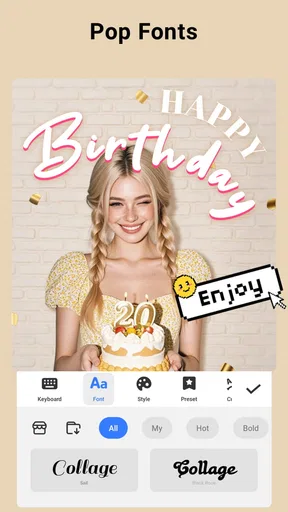
 Analysis by AppCompare
I like Collage Maker | Photo Editor most when I want several ordinary photos to feel like one considered keepsake, without turning the task into a long editing session. It is a free photography app from Photo Editor & Collage Maker, and its appeal is practical: arrange pictures, give them a consistent look, and add a little personality in one place. The sheer number of choices is useful, but it can also make a quick project feel less quick if I browse every option. I’d recommend it to people who enjoy making collages for messages, social posts, or personal memories; I’d steer someone who needs precise, layer-based image work toward a more specialized editor.
Unleashing Creativity with Ease
First things first, installing the Collage Maker | Photo Editor app was a breeze. It’s available on both Android and iOS, making it accessible for pretty much everyone. Once installed, I was immediately greeted by a user-friendly interface that’s refreshingly intuitive. The app doesn’t waste any time with unnecessary frills. Instead, it gets straight to the point, offering a variety of features that are easy to navigate.
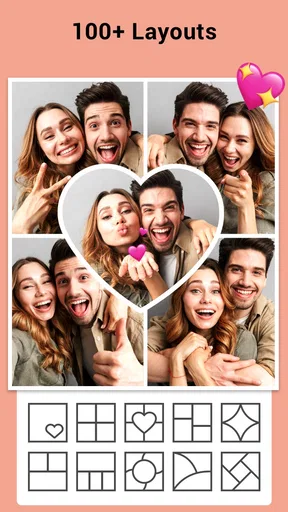
The range is a large part of the draw: the app is known for more than a thousand layouts, alongside filters, stickers, and text tools. I found it most helpful to decide on the purpose before choosing a design. A small set of related photos usually works better in a simple grid, while a more expressive layout suits a birthday greeting or a visual recap. Starting with a clear idea helps me avoid spending longer comparing layouts than actually editing.
Templates Galore
One of the standout features of this app is the extensive range of templates. Whether you’re aiming for a minimalist aesthetic or something more vibrant and colorful, there's a template for every mood and occasion. I found myself playing around with different styles, and it was surprisingly fun to see how each template could transform my photos.
The app also offers customization options, allowing you to tweak the templates to your liking. Want more than just a basic grid? No problem. You can adjust borders, change background colors, and even add text to personalize your collages further.
A useful habit is to choose the photos first and then judge the layout against them, rather than picking an attractive template and forcing every image to fit. Portraits, landscapes, and close-ups can compete for attention when they are mixed without a plan. I usually choose one photo as the focus, then use the others to provide context. That small decision makes a collage feel intentional even when I keep the design simple.
For an everyday example, I might gather a few pictures from a family visit, select a layout that gives the clearest shot more space, and add a short label such as the place or occasion. That produces something easy to send to relatives without making them scroll through a whole camera roll. For a set of product snapshots or a step-by-step craft, a consistent grid can make the sequence easier to understand than a collection of separate images.
Worth Reading Before You Choose

Baby Panda World Brings Quick Play to Modern Phones, but Its Game Library Feels Busy

ESPN’s Live Game View Makes Following Close Games Easier

QuizzLand Review: A Good Fit for Short Trivia Breaks, Not Every Player

Basketball Stars: Multiplayer Is Fast, but Can It Recover When Matches Go Wrong?

WEBTOON Turns Phone Updates Into a Better Reading Routine

Link to Windows Runs on Shared Habits, Not Social Feeds
Editing Tools That Pack a Punch
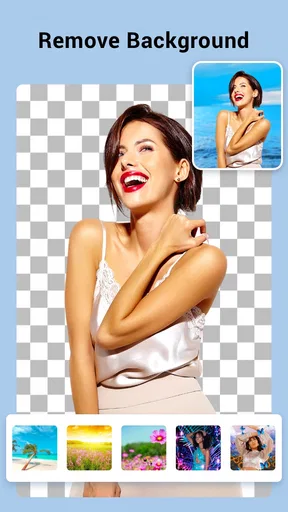
Beyond just creating collages, the Photo Editor aspect of the app is nothing short of impressive. It offers all the essential editing tools you’d expect—crop, rotate, and adjust brightness—but it doesn’t stop there. The app includes filters that can dramatically enhance the mood of your photos with just a tap.
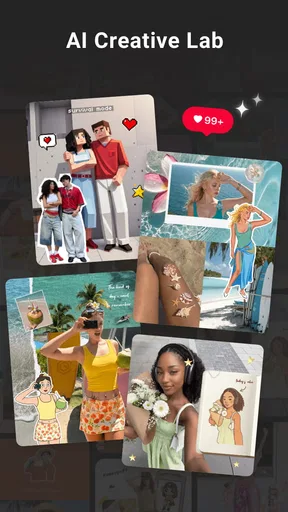
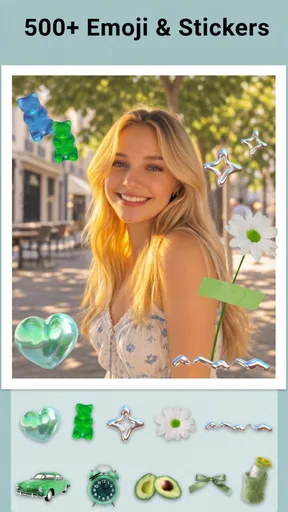
For those who like to get a bit more hands-on, there are also more advanced editing tools available. Adjusting saturation, contrast, and sharpness became my new obsession, and the results were consistently stunning. The app even supports adding stickers and doodles, which can be a fun way to add a playful touch to your creations.
My main editing tip is to make corrections before decorating. Cropping and straightening first gives the photos a more consistent foundation; then I can compare a filter across the whole group instead of treating each frame as an unrelated picture. I keep changes restrained when the images will sit side by side, because one heavily brightened photo can look out of place beside several natural ones. Stickers and doodles work best as accents, not as a substitute for a clear composition.
There is a trade-off between convenience and control here. The built-in tools let me finish a collage without switching between several apps, which is ideal for routine edits. But if I need meticulous retouching, exact color matching, or detailed control over individual image layers, I would use a dedicated photo editor instead. This app’s strength is a joined-up collage workflow, not replacing every specialist tool.
Sharing Your Masterpieces
Once you’ve crafted your perfect collage, sharing it is a cinch. The app integrates seamlessly with all major social media platforms, so you can post your creations directly to Instagram, Facebook, or wherever else you like to share your life. The app ensures that your images are saved in high resolution, so they look just as good online as they do on your phone.
For those who prefer a more personal touch, the app also offers options to print your collages. Imagine turning your digital creations into tangible photo books or prints for your home. It’s a feature that adds an extra layer of versatility to an already impressive app.
Before sharing, I recommend checking the finished image at normal screen size and making sure the text is still readable. A design that looks clear while zoomed in can become crowded on a phone feed. For a collage intended for printing, I’d keep captions and decorative details away from the edges and favor photos that remain legible when viewed together. A quick final look also helps catch an image that has been cropped in a way that hides the subject.
Compared with the usual alternatives, this is more convenient than opening a general image editor and building a collage from scratch, especially when the goal is a fast, polished arrangement. A social platform’s own layout tools may be quicker for a one-off post, but they offer less room to shape a keepsake for sharing elsewhere. On the other hand, someone who wants precise page design or extensive retouching may be happier with a professional editor. I see this app as a handy middle ground: more creative freedom than a basic posting tool, with less complexity than a full design suite.
Who It Suits—and Where It Frustrates
I’d put this app on the shortlist for people who regularly combine photos for birthdays, trips, family updates, school projects, or small business posts. It is approachable enough for someone who has never made a collage, while the ability to adjust the look gives more confident users room to make the result feel personal. Its 4.9 average from around 3.6 million ratings, and more than 100 million installs, suggest that this straightforward approach has broad appeal; popularity alone, of course, does not mean every workflow will suit every person.
The choice can be a little overwhelming if all you want is one quick arrangement. I find it helps to set a limit: decide how many images to include, pick a layout family, and move on once the result reads clearly. Someone who edits only one photo at a time may not get enough value from a collage-focused app, while a designer who expects exact layer positioning or highly controlled output should look elsewhere. The app is at its best when speed, accessible tools, and a finished multi-photo composition matter more than fine-grained production control.
It is free to start, with in-app purchases ranging from 99 cents to $21.99 per item. That makes it sensible to try the regular workflow first and decide whether any paid option is worth it for your own habits, rather than assuming every tool needs to be unlocked. It is rated for Everyone, and version 2.364.200 requires Android 8.0 or later. If you are on iOS, the app is also available there; on Android, checking that minimum requirement before installing is a practical first step.
A Few Final Thoughts
Overall, my experience with Collage Maker | Photo Editor has been overwhelmingly positive. It’s an app that truly caters to both novices and seasoned photo editors alike. Its ease of use, combined with a robust set of features, makes it a standout choice for anyone looking to get creative with their photos.
Whether you’re looking to create a quick collage for social media or dive into more detailed photo edits, this app has got you covered. So why not give it a try? You might just find yourself as hooked as I am, turning everyday photos into works of art.
In the ever-growing world of photo editing apps, Collage Maker | Photo Editor certainly holds its own. With its user-friendly interface and powerful tools, it’s easy to see why it’s become a favorite among users. Happy editing!
Pros
- User-friendly interface for easy editing.
- Wide range of templates and layouts.
- Includes fun stickers and filters.
- Supports high-resolution exports.
- Fast processing with minimal lag.
Cons
- Ads can be intrusive at times.
- Limited features in free version.
- Requires internet for some functions.
- No option for video collages.
- In-app purchases can be pricey.
FAQs for Collage Maker | Photo Editor
What features does Collage Maker | Photo Editor offer?
Collage Maker | Photo Editor offers a wide array of features including customizable grid layouts, filters, stickers, and text options. Users can easily combine multiple photos into creative collages. The app also provides tools for adjusting brightness, contrast, and saturation to enhance your images, making it a versatile choice for photo editing enthusiasts.
Is Collage Maker | Photo Editor free to use?
Collage Maker | Photo Editor offers a free version with basic features, but it also includes in-app purchases for premium features. These may include additional stickers, advanced editing tools, and ad removal. Users can choose to upgrade based on their needs and preferences for a more comprehensive editing experience.
Can I share my collages directly from the app?
Yes, Collage Maker | Photo Editor allows you to share your creations directly from the app. You can easily post your collages to social media platforms such as Instagram, Facebook, and Twitter. The app also supports sharing via messaging apps and email, making it convenient to showcase your work.
Does the app support high-resolution photo editing?
Collage Maker | Photo Editor supports high-resolution editing, allowing you to maintain the quality of your images. This feature is particularly beneficial for users who wish to print their collages or need professional-quality outputs. However, high-resolution editing might require more storage space and processing power on your device.
Is Collage Maker | Photo Editor user-friendly for beginners?
Absolutely, the app is designed with an intuitive interface that is user-friendly for beginners. It offers simple drag-and-drop functionality, easy-to-navigate menus, and helpful tutorials. Whether you are new to photo editing or an experienced user, the app provides a seamless experience for creating stunning collages.


